
Stop editing one lesson at a time.
Start shipping entire courses.
Turn raw lecture recordings into structured, captioned course videos with consistent pacing and clear narration. Stop re-editing the same lesson every semester. Start shipping polished course content at curriculum scale.
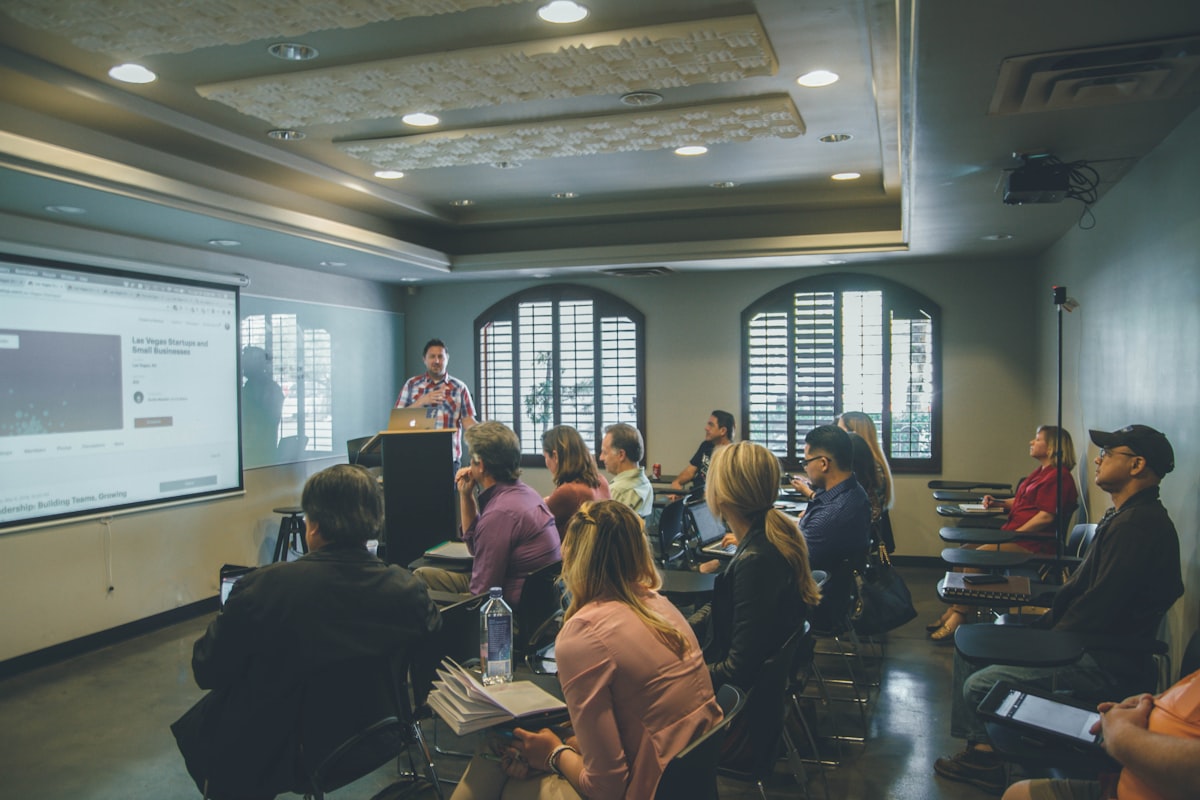
Automated video production for education means turning raw lecture recordings into structured, captioned course videos — with consistent narration, accessible captions, and chapter markers — without manually editing every lesson. obclip replaces the fragmented post-production workflow that forces educators to choose between content quality and catalog size.
The problem
The real cost of producing course video
Recording a lecture is the easy part. Turning it into a polished lesson that students actually finish? That's where the hours disappear.
- 1Record lecture — screen share, camera, or both.Zoom, OBS, Loom, camera20–90 min
- 2Trim dead air, false starts, and tangents.Premiere, DaVinci Resolve, CapCut30–60 min
- 3Write or generate voiceover narration.ElevenLabs, Play.ht, or manual script20–40 min
- 4Sync narration to slides or screen recording.Timeline editor — manual alignment30–60 min
- 5Add captions — fix auto-generated errors.Descript, manual SRT editing, Rev20–45 min
- 6Add chapter markers and lesson structure.YouTube Studio, LMS chapter tools10–20 min
- 7Write lesson metadata — title, description.LMS admin panel, YouTube Studio10–15 min
- 8Export and upload to LMS and/or YouTube.Manual upload per platform10–20 min
Conservative total: 2.5–5.5 hours per lesson. For a 30-lesson course? 75–165 hours. That's why most courses launch with 8 lessons instead of 30.
| Course Size | Production Time | Calendar Time (Solo) |
|---|---|---|
| 10 lessons | 25–55 hours | 2–4 weeks |
| 30 lessons | 75–165 hours | 6–12 weeks |
| 60 lessons | 150–330 hours | 3–6 months |
| Full curriculum | 300+ hours | 6–12 months |
What changes
Consistent voice. Built-in captions. Curriculum scale.
Lesson 1 and Lesson 30 sound identical
Pick a voice style once. Lock the narrator tone, pacing, and delivery for your entire course. No more audio drift across recording sessions. No more “I recorded this at midnight and you can hear it.”
Built in, not bolted on
Timed, styled captions generate as a native pipeline stage. No separate SRT workflow. No third-party transcription. Every video gets captions automatically — accessibility handled at the pipeline level.
Upload a module. Ship a module.
Upload all recordings for a course module at once. The pipeline processes each lesson independently and in parallel — same voice, same caption style, consistent quality across every lesson.
How it works
Lecture recordings in. Polished course videos out.
The same nine-stage pipeline teams and agencies use — but educators unlock its full power through consistent formatting and curriculum-scale batch runs.
Drop in raw recordings — Zoom sessions, screen captures, camera footage, or slide-with-narration recordings. MP4, MOV, WebM. No pre-processing required.
A narration script is drafted from the footage analysis. Your locked voice style applies — same narrator tone across every lesson. No per-lesson configuration.
Timed captions render with your workspace's locked caption preset. Chapter markers are generated from slide transitions and topic changes. SEO metadata tunes for educational search intent.
Preview the finished lesson. Publish directly to YouTube with generated metadata and chapters, or download for upload to Teachable, Thinkific, Udemy, Canvas, or any LMS.
Side by side
Manual lesson editing vs. obclip pipeline
| Manual Production | obclip Pipeline | |
|---|---|---|
| Audio consistency | Varies by recording session and energy level | Locked voice style |
| Captions | Manual captioning or inaccurate auto-generated | Auto captions |
| Chapter markers | Manual timestamp entry in YouTube Studio | Auto-generated |
| Tools involved | 6–8 apps per lesson | 1 pipeline, unlimited lessons |
| Time per lesson | 2.5–5.5 hours | Minutes (upload + review) |
| Batch capability | One lesson at a time | Entire course module in parallel |
| Course updates | Re-record, re-edit, re-caption | Upload new recording, re-run pipeline |
| Consistency across lessons | Depends on when and how you recorded | Locked presets guarantee uniformity |
| Accessibility compliance | Separate workflow, often skipped | Built into every pipeline run |
| Publishing | Export and upload per platform | Direct publish |
Lessons batch-processed at once
Caption coverage per course
Steps collapsed per lesson
Accessibility
Captions aren't optional in education
Students who are deaf or hard of hearing, non-native speakers, and learners in noisy environments all depend on accurate captions. Many institutions require them.
| Approach | Accuracy | Time per Lesson | Consistency |
|---|---|---|---|
| Manual captioning | 95–99% | 2–3 hours / lesson | Depends on who captions |
| Auto-generated (YouTube/Zoom) | 70–85% | 5 min + 1 hr QA | Inconsistent |
| Third-party service (Rev, etc.) | 95–99% | 24–48 hr wait | Consistent but slow |
| obclip pipeline | High | Automated | Locked per workspace |
obclip generates captions from its own narration script — not from noisy raw audio. The pipeline knows exactly what was said because it generated the speech. This produces higher accuracy than any tool that transcribes from a recording.
Course structure
Chapters, metadata, and transcripts — per lesson
Every lesson gets structure that helps students navigate and search engines discover your content.
| Output | What It Contains | Used In |
|---|---|---|
| Chapter markers | Timestamped sections from slide transitions and topic changes | YouTube chapters, LMS navigation |
| Title | SEO-optimized lesson title from content analysis | YouTube, LMS, search results |
| Description | Lesson summary with key topics covered | YouTube description, LMS listing |
| Tags | Relevant keywords for educational search discovery | YouTube tags, LMS categories |
| Transcript | Full text from the narration script | LMS supplementary material, SEO |
Who is this for
Educator profiles that benefit most
Online course producers
Sell courses on Udemy, Teachable, Skillshare, or Thinkific. Record all lessons for a module in a single session, upload the batch, and get individually captioned, consistently voiced lessons ready for your LMS. Launch a 30-lesson course in days instead of months.
University & college instructors
Record lectures for hybrid or fully remote courses. The pipeline produces captioned, chapter-marked videos with clean narration. Accessibility compliance is handled at the pipeline level — not as a separate post-production step you forget mid-semester.
Corporate training teams
Produce onboarding, compliance, and skills development content. Create a workspace per training program. Lock voice and caption presets to corporate brand guidelines. Subject matter experts upload recordings; the pipeline handles post-production.
Tutorial YouTube channels
Teaching programming, design, photography, or any skill-based content? Set your voice style and caption preset once. Upload each tutorial recording and get a consistent, publish-ready video with SEO metadata tuned for educational search queries.
Coding bootcamps & workshops
Turn live session recordings into reusable, polished course material. Each workshop recording processes independently with the same voice and caption presets, creating a cohesive curriculum from ad-hoc recordings.
Real outputs
What educators are producing with obclip
Python fundamentals course
Programming30 screen recordings with code editor
Captioned tutorials with chapter markers per concept
Marketing strategy lectures
BusinessSlide-with-narration recordings
Polished lessons with consistent voice and branded captions
Photography workshop
CreativeLive demo recordings from workshop sessions
Structured course modules with SEO-optimized metadata
Compliance training
CorporatePolicy walkthrough recordings
Accessible, captioned modules ready for corporate LMS
Language lessons
EducationInstructor-led conversation recordings
Captioned lessons with clear pacing for non-native speakers
Full semester batch
Batch24 lecture recordings (12 weeks × 2)
24 captioned, chaptered videos with consistent formatting
FAQ
Common questions
What types of recordings work best?
Screen recordings, slide-with-narration captures, camera-on-instructor footage, and Zoom/Teams recordings all work. The pipeline handles different codecs and resolutions internally.
Can I use my own voice instead of AI narration?
Yes. If your recording already has narration, the pipeline can work with your existing audio. The voiceover stage can enhance, replace, or supplement — depending on your preference.
How do I maintain consistency across a 30-lesson course?
Lock your voice style and caption style at the workspace level. Every lesson processed in that workspace inherits the same settings. No per-lesson configuration. No drift.
Are the captions accurate enough for accessibility compliance?
Captions are generated from the pipeline's own narration script — not transcribed from noisy raw audio. This produces higher accuracy than typical auto-captioning. Review the output before publishing for institution-specific compliance.
Can I use obclip for multiple courses?
Yes. Use workspaces to organize by course or by department. Each workspace has its own voice, caption, and metadata presets. A Python course can have a different voice style than a marketing course.
Can I publish directly to YouTube from the pipeline?
Yes. Connect your YouTube channel via OAuth. The pipeline pushes finished lessons with generated metadata, chapters, and tags directly. No switching to YouTube Studio.
How does batch processing work for a full course?
Upload all lesson recordings at once. The pipeline processes each independently and in parallel — each with its own script, voiceover, and metadata, but all using the same workspace presets.
Can I export for my LMS instead of YouTube?
Yes. Download rendered videos and metadata for upload to Teachable, Thinkific, Udemy, Canvas, Moodle, or any LMS that accepts standard video files. Chapter markers and transcripts export alongside the video.
Ready to turn lectures into finished courses?
Stop editing one lesson at a time. Batch process your entire curriculum with consistent voice, captions, and chapters.